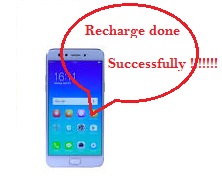
How to payment through debit cards

Payment through debit cards :

We can payment any things online through debit card which is issue in bank.

You can use this card many places i.e. Shopping, Mall, any accessories where accepted cards.

This payment system is very popular now a day.


Now debit card purchase almost all bank account holder.

Here we are payment a mobile company and recharge our mobile.

Lets go how it possible :-

1. Suppose we recharge in Airtel network. Type in search engine - www.airtel.in
2. Go to home page and click in recharge section.
3. Give your Mobile no., E-mail id, Recharge amount.
4. Then go to proceed button.
5. Now select debit card in payment section.
6. Select your card type (Ex- VISA, Master, Maestro, Rupay cards etc) 
7. Give your 16 digit card number which is shown in your card.
8. Then select your card expiry date. Give name of card holder etc.
9. Give your cvv no. which is available in card other side (Card's back side).(This is 3 digit)
     cvv no shown in the picture :-

10. Now click in proceed button.
11. Now ask for verify your mobile no. to sent OTP  code. Then click proceed.
     (If you are selected debit card with pin then ask you for pin otherwise send OTP)
12. Now your mobile recharged successfully done.


Thanks for watching

how to recharge mobile through internet banking

Online recharge your phone :

You can recharge online your phone/mobile by using of internet banking payment system.

It is used very simple and easy.


This is done through your mobile or computer also.

Lets start how to recharge your phone.

1. First connect your internet and search www.bsnl.com (If your mobile network is bsnl)

2. Then go to home page of BSNL network.

3. Then go to online mobile recharge section.

4. Give your details - i.e. Mobile no., e-mail id, name(If required) , place(If required) etc

5. Give your recharge amount.


6. Then click proceed button.

7. Then select Internet Banking Payment option.

8. Select your bank.

9. Now open your bank's log in page.

10. Give your log in id and password.

11. Then give your transaction password (txn).

12. Click proceed button.

13. Now your mobile recharged is successfully done.

Note : Same proceed will done all other mobile network also.


Thanks for watching. 

How to online premium payment LIC Insurance policy through Internet Banking

Premium Payment through Internet Banking :

1. You can payment the any insurances policy premium online through Internet banking.

2. Very easy and simple process to paid premium online. 


3. You can save your time, if online paid your premium.

4. So, use this facility and paid your premium fro your  home.

5. Every Insurance companies online premium payment  option almost same.

lets see how to proceed it :

1. Suppose we take an example with LIC corporation of India. Go to the site - www.lic.in
2. Go to LIC official page. And got home page.
3. Click in Pay Premium Online section.
4. In next page you can register here or payment directly. After register give your policy id.

    (Note : The better option is always registered your policy online before the payment. this is           better for your online proceeding payment or any thing. but some insurance companies 
     no need to registered before online premium payment.)   

5. After give policy ID, then payment option is appear.
6. Select Internet Banking option.
7. After click proceed or next button your bank log in page will appear.
8.Give your Log in ID and Password. Then click Proceed or next button.
9. In next page give your transaction password. And click next.
10. Now your premium payment is successfully done.


Thanks for watching...................

How to change your Log in Id in internet banking

Change your Log in Id in internet banking :

You can change your log in password any time.

But don't change every or every week. Change password in every 6 or 12 months.

User Id and Log in Id is a same thing.


Here we are use Log in Id .

Follow this process step by step :

1. Connect internet and log in your internet banking account.

2. Now you can see where display Change your Log in Id .

3. Click here.

4. Now following box is appear.

5. Give your current log in id which you used and log in .

6. Give your new log in id  what you want to make new id.

7. Retype this new log in id in confirm log in box.

8. Click in change or proceed button.

9. Now your new log in id is successfully changed.

How to change password for internet banking

Change your password in internet banking :

You can change your password of internet banking facility.

By the way bank automatic call for make the password in every 3 or 6 months.

You know that every bank's  internet banking are two types of pass word.

1. Log in password
2. Transaction password

Both bank's password change method is same.

Suppose we change Log in password, step is below -

1. Connect internet and log in to your account.

2. Now you can see Change log in password option. Click this option.

3.  Now you can see password change option like following -

4. Give your current password which you are used for log in now.

5. Give your new password  which you want to make for log in.

6. Retype in confirm option to retype log in password.

7. Now click in change or proceed button. 

8. Now changed your internet banking log in password successfully.


Note : Same process will allow for change the transaction password.


Thanks for watching...............


How to easily recharge your phone ?

Recharge your phone just few easy step :

You can recharge your phone very easily in just few step.

Easy and simple process to recharge your mobile phone is that , recharge through your company network.

We here recharge through Airtel network.

Lets see how to recharge in just few stem :


1. Open google page in tour screen.

2. Type the website- www.airtel.in

3. Now Airtel home page will appear.

4. Got to  recharge option.

5. Give your mobile no., e-mail id, and recharge amount.

6. Now click the next proceed button.

7. Now appear payment option.

8. Select your payment option and do proceed.

9. Now your recharge is successfully done.


Note : Recharge through apps also  is very fast.


Thanks for watching.   

Computer Basic Shortcut Keys

                                                                Shortcut Keys

   Shortcut Keys      Descriptions

Alt + F                    File menu option 
Alt + E                    Edit option

F1                            Universal Help
Ctrl + A                  Select all content
Ctrl + X                  Cut selected item
Ctrl + V                  Paste selected item
Ctrl + C                  Copy selected item
Home                      Goes to beginning of current line
End                         Goes to end of current line
Ctrl + Home -        Goes to beginning of document
Ctrl + end -            Goes to end of document
F2                            Rename selected icon
F3                            Start find from desktop
F5                            Refresh Contents
Alt + F4                  Close current open program
Alt + Enter             Open properties window of selected item
Shift + F10             Simulates Right Click
Shift + Del              Delete item permanently without storing recycle bin
Winkey + D            To bring desktop
Winkey + F             display the windows search
Winkey + R            Open Run Window
Ctrl + P                   Print the document
Ctrl + S                   Save the document
Ctrl + O                  Open the document
Ctrl + N                  For new program of any document
Ctrl + H                  Replace word of any document
Ctrl + F                   Find 
Ctrl + Z                   Undo option
Ctrl + Y                   Redo option
Ctrl + B                   Bold the text of document
Ctrl + I                    Italic the text of document
Ctrl + U                  Underline the text if document
Ctrl +K                   Use  for hyperlink
F7                            Spelling and grammar check